I actually JUST added a little in-app Reference Guide to hopefully help explain a few basic features, like connecting & sending settings, and loading & saving presets, and SLIDERS ‘GO LIVE’ settings.
It’s just under the SYSTEM accordion bar.

1 Like
I have the latest version of the firmware, and I’ve followed the instructions, including charging the KB for hours, but no matter what I do, the battery monitor remains “uncalibrated”.

It could be a few issues.
- Did you turn it on first before plugging the USB?
- Did you have it plugged into a computer and see the pink/blue LEDs pulsing during charge? This is how to confirm it KNOWS it is getting charged.
- Did you complete the initial full 5hr charge in that state?
If you did all that and think it is fully charged, you can click the upper battery icon 5 times to bypass the automatic mode and set it manually to whatever level you decide.
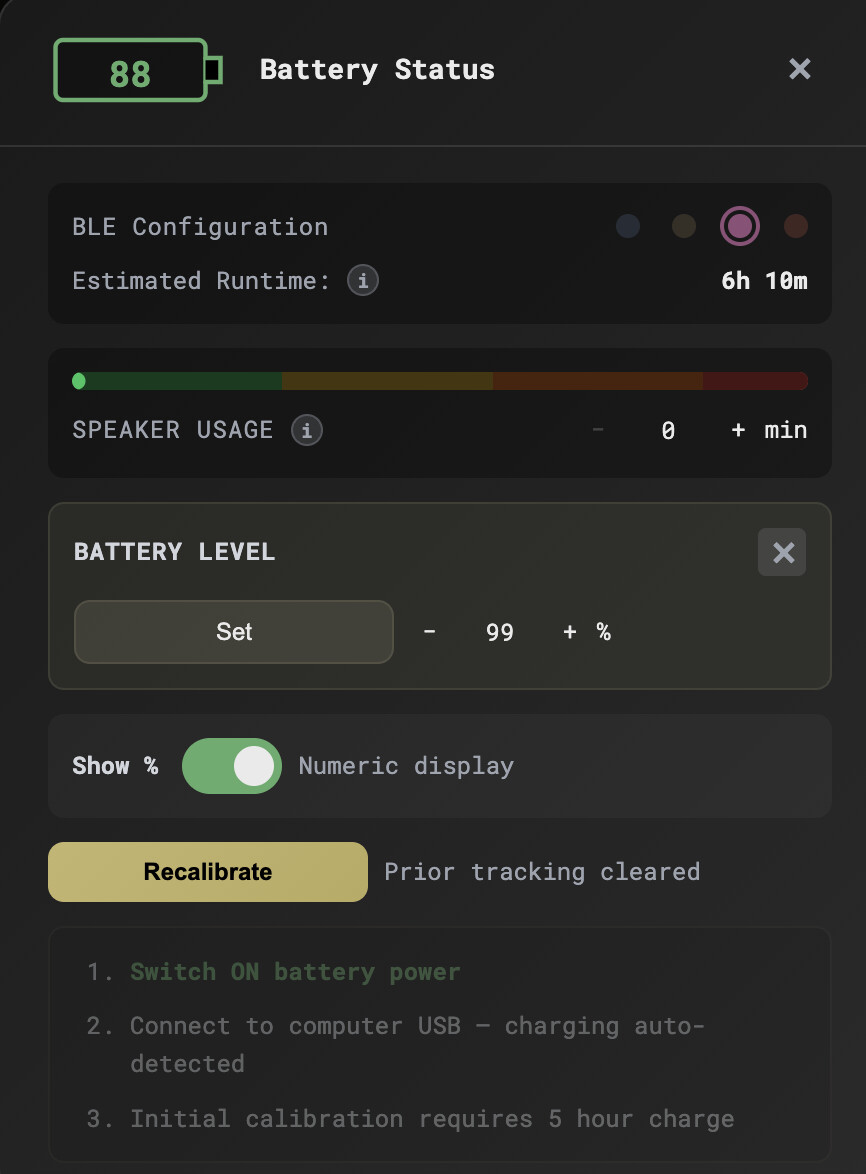
Just remember it must be plugged into a computer while charging (with pink/blue pulses) if you want it to automatically keep track of the level going forward.
LMK if that helps.
The pink/blue LEDs time out well before the 5 hour charge.
Thanks for the feedback on this! You helped me discover a bug that I hadn’t really thought thru.
If the computer goes to sleep, then the calibration gets disturbed 
I’m rolling some new battery management fixes into the latest build (v2.1.0) to address that now.
Basically, if after 3mins the computer goes to sleep then it won’t affect anything.
Also, the ‘hidden’ manual override is now visible in the app under an ‘advanced’ bar.
2 Likes
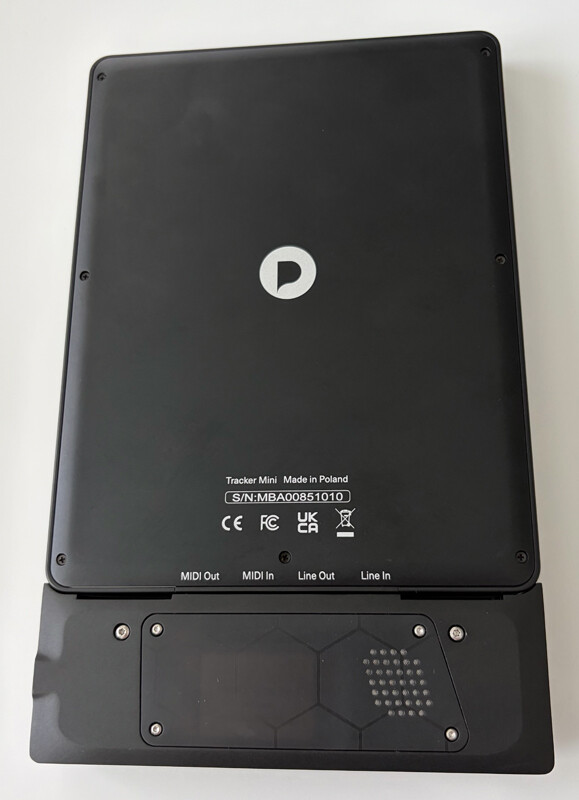
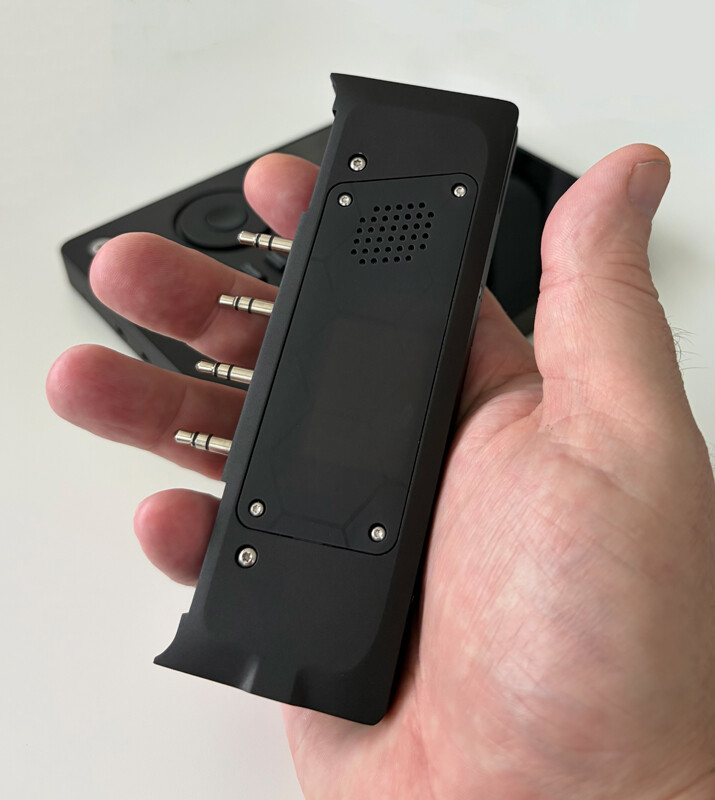
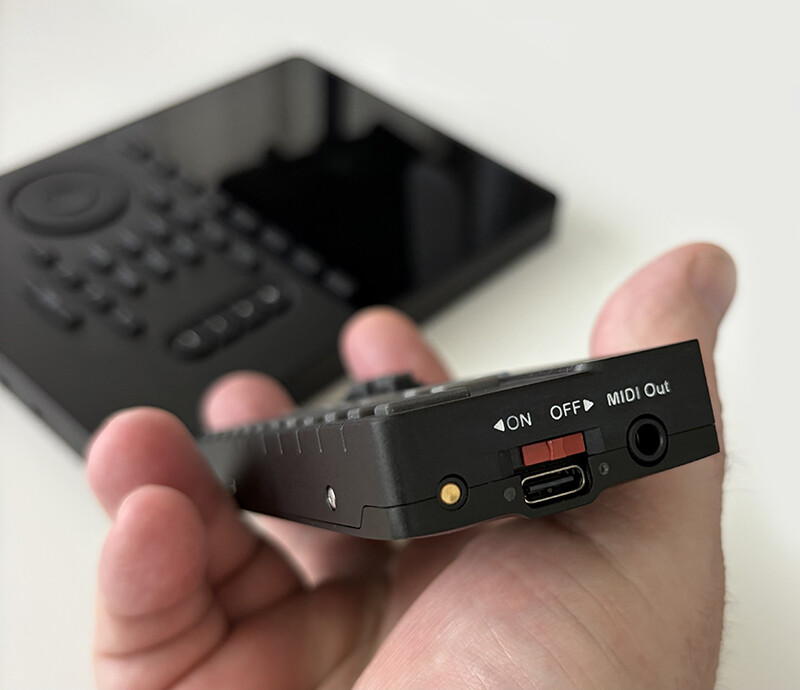
The production of the next batch continues, and I also wanted to share the latest aluminum version.The prototype came out better than expected. It looks amazing and matches the Tracker Mini aluminum perfectly!
I’m trying to figure out how to make this a reality for those of you that want this.
Full transparency -
Depending on volume, with shipping and tariff estimates, it could be anywhere from mid 200’s to low 300’s per set of these. That’s hard costs for the aluminum parts alone, so the total price for the Aluminum KB1’s would be more than doubled. It’s incredibly hard to get a straight answer or hard numbers from anyone until it actually goes thru customs, which is incredibly frustrating 
I’m not sure what the next step will be yet, but I am considering buying 10 sets (5 black/5 silver) if the demand is there.



4 Likes
I’ll buy a black aluminum! 100%! I’ll even pay up front if you’d like.
Absolutely stunning btw!
looks great! can you offer a weight comparison between allum vs og plastic? also would it be cheaper to offer the enclosure by itself? i guess it would cost more to buy og plastic and add allum diy swap but it may help spread out the cost a bit if its just a $50 metal part or something; you may not even have to declare it as electronics then? not sure how all that works
looks great please count me in for one like 90%; i think its probably worth it if the weight difference isnt too great; also how is its rigidity vs plastic one? any flex?
looking forward to the new batch availability!
What is the difference between the power indicator and the charge indicator?
Using KB Configurator on Google. KB1 is connected to Web Bluetooth. Since the automatic battery calibration doesn’t seem to work, tried setting the Battery configuration manually. Had to click on the plus sign one hundred times to get to 100%, which was annoying. Once there I pressed the “Set Level” button and got the error message “Battery control characteristic not available. Try reconnecting.”
While doing this, the red charge indicator went out but the orange power indicator stayed on. Light sleep lights continue to cycle.
Apologies for the frustration, but thanks again for helping get this nailed down.
It seems that you may have lost connection and the web app showed a connection error. I fixed the code to basically store the settings even if you lose connection, so the there should be no more errors.
Also you don’t have to use the -/+ buttons, you can click and drag the % level to change the value, that goes for any setting in the web app.
When the power switch is ‘on’ there is a solid yellow light on the right side of the switch. When you plug it into any usb power source, the red light on the left side of the switch will blink, indicating basic charging, without any tracking. If that stopped blinking then you had a full charge.
When that power source is a (smart) computer usb port, the top pink/blue leds will pulse indicating that the firmware is now tracking the charge.
Also it should stay awake as long as it is connected to the web app.
No worries, it’s a new product, and I appreciate all the hard work you’ve put into this project. I finally just set the battery level manually. Where is the current battery level displayed?
Good question, OG KB1 is about 78g, aluminum KB1 is about 120g and cnc milled from billet, so quite rigid 
I’m still looking into options. Higher volume will yield lower prices, but the tariff situation is just ridiculous and is constantly changing. One option would be for people to order the machined aluminum and 3d printed parts directly from PCBway and then swap out the shells themselves. I’ll be adding the files up there as a shared project, but not everyone is comfortable doing that kind of DIY work.
1 Like
As an alternative to the premium aluminum shells, I just designed a ‘slim’ back shell to replace the standard one. This would be for those who have the Anniversary Tracker and just want a thinner KB1 to match. It will still be 3d printed black nylon, the same as the other version, just 2mm thinner.
I will be printing some up and testing the fit soon.
if it works out well, I’ll have a limited amount in the store as optional KB1 versions and as a stand-alone part for anyone who wants to do the swap themselves.

Not sure what you’re asking here, the battery icon is in the upper left of the screen. If you are asking about the numeric display, there’s a switch to toggle on/off - see the pic.

When I manually set the level in configurator in Chrome on Windows 11, the battery icon stays blank. When I manually set the level in Chrome on Android, I see a solid green battery.
Just sent you a PM to troubleshoot.
So Sandroid had been dropping hints about this for a while in the Tracker Overflow discord.
And I had been looking for a while for a solution to the KB1’s limited range.
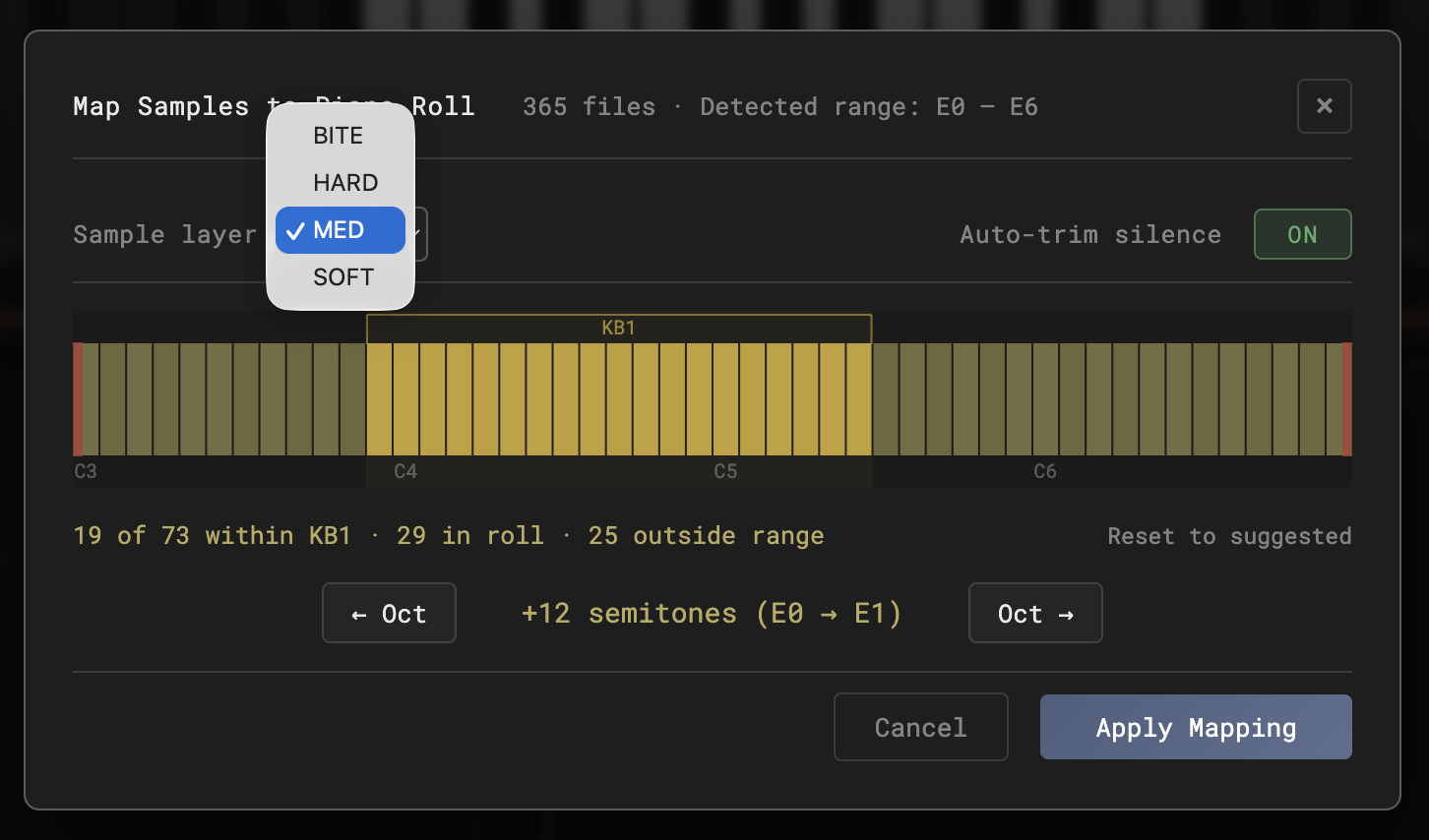
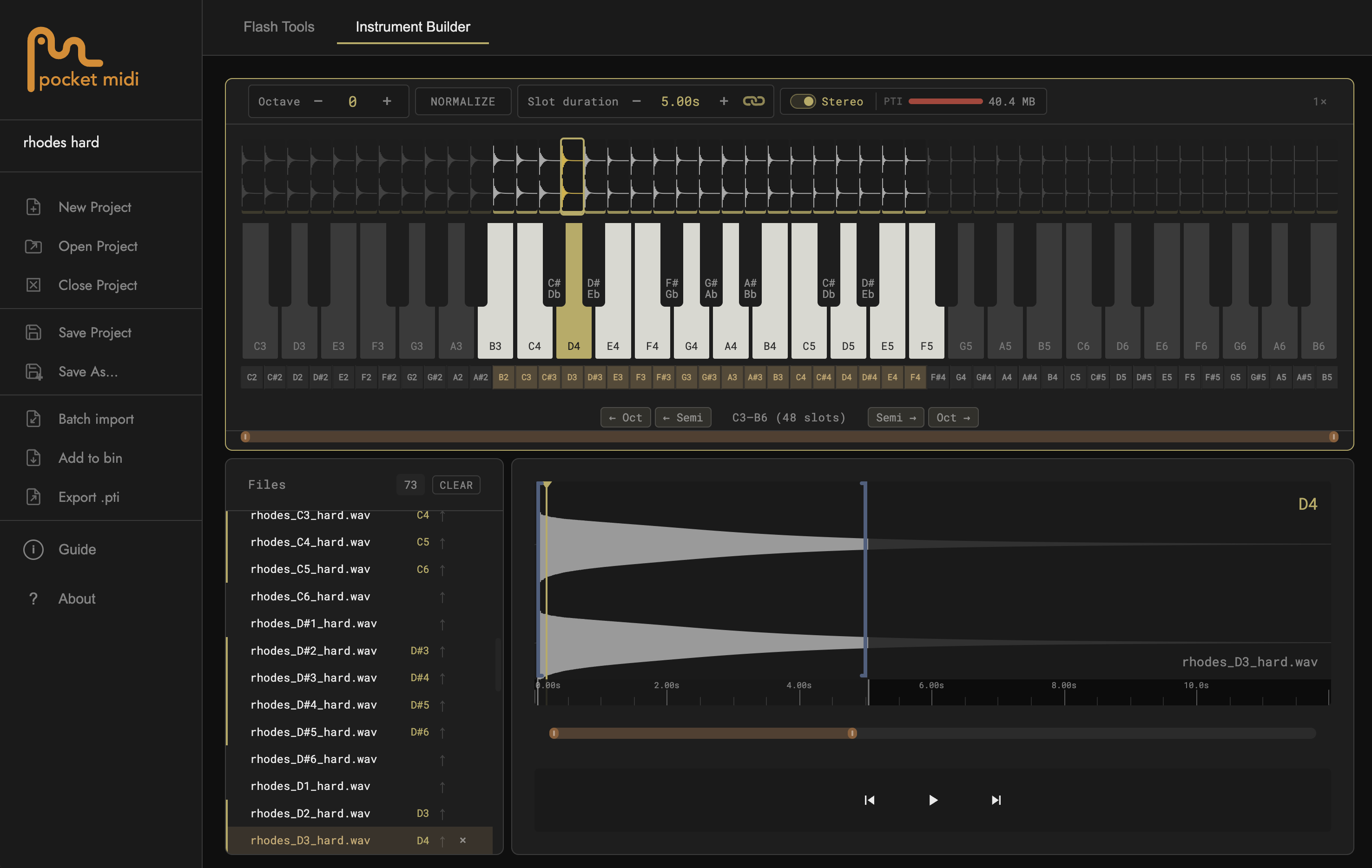
Well, now thanks to his and Polyend team’s hard work on the new libraries I was able to build a little tool, to map out beat sliced instruments tailored to the KB1. This and the Flash tool has been rolled into KB1-Studio. The flash tool remains the same, and an additional tab now gives you an Instrument builder. Primary workflow is to batch import a folder full of samples (or pick and add singles as well), and the app will parse through the files and try its best to map them to the keys. Then, once in the interface, you can slip them along the keyboard any way you like, normalize the levels, play or shuttle thru each sample, trim all at once, see a preview of the file size, export the .pti file, and save as a project locally. Now I have some really nice Rhodes versions from Zach Hannah’s Wonder Rhodes on https://www.pianobook.co.uk .
Import looks like this.
Main window looks like this.
3 Likes
How could it possibly get any better?
2 Likes