Preamble
Grüezi! Today, we’re going to set you up with everything you need, to start creating your own effects for the Polyend Endless.
This written tutorial is more or less the same content, as in the video below. But some of you may just prefer a written version instead.
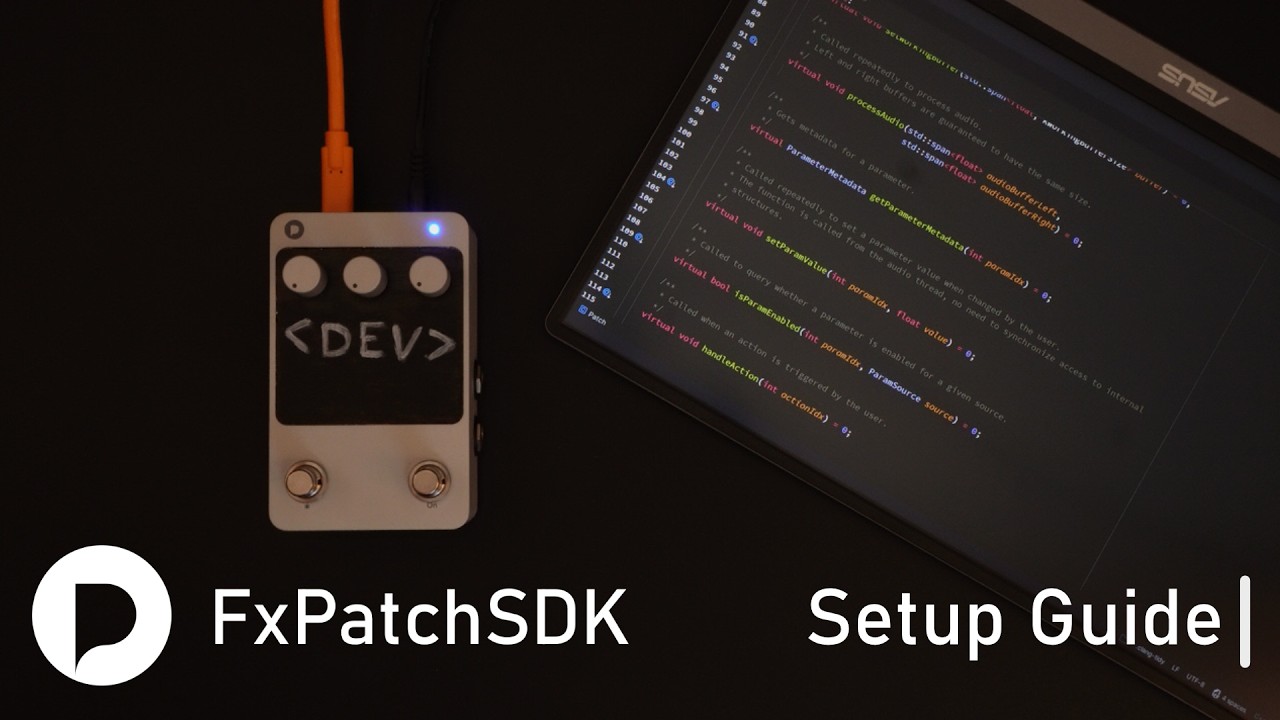
What we are going to need
There are three things we’ll require for this:
-
The ARM GNU Toolchain (Link)
This is a set of tools that helps us compile our code for the Endless hardware.
We specifically want to use thearm-none-eabiversion of it.- Where
ARMspecifies the system architecture. As in: the instruction-set the CPU uses. Nonemeans there is no underlying operating system, so the code runs “bare metal.”- And
EABIstands for Embedded Application Binary Interface.
Which defines the standard conventions for how the compiled code interacts with the hardware.
- Where
-
An IDE or (Integrated Development Environment)
Like Visual Studio Code. In this case we’re going to use CLion by Jetbrains.
Mostly because Jetbrain IDE’s are my go-to, it’s not Microsoft and they are also available for free, for non-commercial use.
-
The FxPatchSDK (Link)
The Software Development Kit provided by Polyend on GitHub. Which will give us a basis to write our own effects for the pedal.
Once you’re done with the setup, there will be a quick overview of the SDK and then a small code example to follow in the video, with some info on how to deploy to the pedal, as well as the instructions how you could update the firmware for the device.
Setup Guides
Setup Guide for Mac
Downloading Assets
-
Download the ARM GNU Toolchain.
Make sure to grab the version specific to your CPU. If you’re on a newer Mac like me, you’ll want the Apple Silicon version.
Search the page formacOSand download thearm-none-eabitarball. -
Next, download and install Jebrains CLion. You can grab the Disk Image (.dmg) or use the JetBrains Toolbox App if you want to easily handle updates in the future.
-
Finally, download the FxPatchSDK from the Polyend GitHub repository.
Go to the “Code” button.. and select “Download ZIP.”
Preparing Files
Before we launch CLion and setup the project, let’s prepare our files.
-
Extract the SDK.
Inside the extracted folder, you’ll notice a.vscodefolder, in case you want to use Visual Studio Code later instead. -
Next, extract the ARM GNU Toolchain.
Once finished, I’ll rename that folder toAGT15-2.
I’m also going to rename the SDK folder to example, but you can name it anything you want, or leave it as it is.
Feel free to move these folders to your preferred destination to keep things organized.
Setting up the Project in CLion
Now that we have all the pieces, let’s launch CLion.
- Select Open and navigate to the example folder we just prepared.
- Once the IDE has opened, a dialog will appear asking you to “clean” the project.
We can ignore this for now, so clickCancel.
First, let’s configure the Toolchain:
- Go to
Settings - Navigate to
Build, Execution, Deployment→Toolchains. - Click the Plus sign and choose
System. - Let’s name the Toolchain
AGT15.2(based on the available version as of writing of this tutorial). - For the C Compiler binary, click the folder icon and navigate to the
binfolder inside your ARM GNU Toolchain directory. Look for the file ending in-gcc. - Repeat this for the C++ Compiler, choosing the file ending in
-g++. - Do this one more time for the Debugger, selecting the file ending in
-gdb. - Before you close this, highlight the path to one of these binaries and copy it to your clipboard.
- Then hit Apply.
Now let’s setup Makefile:
- In the Makefile settings, select the
AGT15.2toolchain. - In Arguments, type
TOOLCHAIN=(all caps) and paste your path. - Remove the file suffix so the path ends at
arm-none-eabi-. - Click OK.
Now that we have all the settings in place, let’s open up the Makefile itself from the project tree on the left.
- Scroll down until you see a green Play icon in the gutter next to the first build target.
- Click it.
- The compilation will fail for now, but this adds the configuration to the run menu at the top right for easy access later.
- Scroll further down and do the same for the clean command.
- To make future builds work, go to Edit Configurations at the top right in the quick run menu.
Select thealltarget and in the Environment variables field, addTOOLCHAIN=followed by that same path we used before (ending inarm-none-eabi-). - Hit Apply and/or OK.
If you open source/PatchImpl.cpp, you might notice the syntax highlighting isn’t fully active yet.
To fix this, simply close and reopen the project. The “Clean” dialog will appear again - this time, click OK.
After a few seconds of indexing, highlighting will work correctly.
When you run all from the top right, a build folder will be created containing your compiled effect as an .endl binary.
And that’s it, you are ready to develop your own effects.
Setup Guide for Windows
Downloading Assets
-
Download the ARM GNU Toolchain.
On Windows, you’ll likely want thex86_64version.
Search the site forWindowsand download thearm-none-eabiZIP file. -
Next, download and install Jebrains CLion. Either download the executable or you could also use the Toolbox App if you want to update easily in the future.
-
We also need MSYS2 to provide the
makeutility. Download thex86_64installer. -
Finally, download the FxPatchSDK from the Polyend GitHub repository.
Go to the “Code” button.. and select “Download ZIP.”
Preparing Files
Before we launch CLion and setup the project, let’s prepare our files.
-
Extract the SDK.
Inside the extracted folder, you’ll notice a.vscodefolder, in case you want to use Visual Studio Code later instead. -
Next, extract the ARM GNU Toolchain.
Once finished, I’ll rename that folder toAGT15-2.
I’m also going to rename the SDK folder to example, but you can name it anything you want, or leave it as it is.
Setting up MSYS2
- Run the MSYS2 installer and follow the prompts.
- Once finished, ensure “Run MSYS2 now” is checked, then click Finish.
- We need to install the build tool
makeby typing the following command in the MSYS2 terminal:pacman -S mingw-w64-ucrt-x86_64-make
- Press
yandEnterto proceed. - Once the installation is complete, you can type
exitto close the shell.
Setting up the Project in CLion
Now that we have all the pieces, let’s launch CLion.
- Select Open and navigate to the example folder we just prepared.
- Once the IDE has opened, a dialog will appear asking you to “clean” the project.
We can ignore this for now, so click Cancel. - A notification may also appear regarding Microsoft Defender.
Click Exclude Folders to ensure the real-time protection doesn’t slow down your builds.
Let’s configure the Toolchain:
- Go to
Settings→Build, Execution, Deployment→Build Tools→Make. - Click the folder icon for the Make executable.
- Navigate to your Windows drive (
C:\→msys64→ucrt64→bin). - Select the
mingw32-makeexecutable and hit Apply.
Now let’s go to the Toolchains settings and add a new System entry for the ARM GNU Toolchain.
- For the C Compiler binary, click the folder icon and navigate to the
binfolder inside your ARM GNU Toolchain directory. Look for the file ending in-gcc. - Repeat this for the C++ Compiler, choosing the file ending in
-g++. - Do this one more time for the Debugger, selecting the file ending in
-gdb. - Before you close this, highlight the path to one of these binaries and copy it to your clipboard.
- Then hit Apply.
Last but not least, let’s setup Makefile:
-
In the
Makefilesettings, select theAGT15.2toolchain. -
In Arguments, type
TOOLCHAIN=(all caps) and paste your path. -
Remove the file suffix so the path ends at
arm-none-eabi-. -
Click OK.
Now that we have all the settings in place, let’s open up the Makefile itself from the project tree on the left.
- Scroll down until you see a green Play icon in the gutter next to the first build target.
- Click it.
- The compilation will fail for now, but this adds the configuration to the run menu at the top right for easy access later.
- Scroll further down and do the same for the clean command.
- To make future builds work, go to
Edit Configurationsat the top right in the quick run menu.
Select thealltarget and in the Environment variables field, addTOOLCHAIN=(all caps) followed by that same path we used before (ending inarm-none-eabi-). - Hit Apply and/or OK.
If you open source/PatchImpl.cpp, you might notice the syntax highlighting isn’t fully active yet. To fix this, simply close and reopen the project. The “Clean” dialog will appear again - this time, click OK.
After a few seconds of indexing, highlighting will work correctly. When you run all from the top right, a build folder will be created containing your compiled effect as an .endl binary.
And that’s it, you are ready to develop your own effects.
Setup Guide for Linux
Downloading Assets
-
Download the ARM GNU Toolchain.
You most likely need thex86_64_Linuxversion. The easiest way to find it, is to search the site forx86_64_Linuxand make sure to download thearm-none-eabitarball. -
Next, download and install Jebrains CLion. Depending on your distro, you can download the tarball or use the Toolbox App to handle future updates easily.
-
Finally, download the FxPatchSDK from the Polyend GitHub repository.
Go to the “Code” button.. and select “Download ZIP.”
Preparing Files
Before we launch CLion and setup the project, let’s prepare our files.
-
Extract the SDK.
Inside the extracted folder, you’ll notice a.vscodefolder, in case you want to use Visual Studio Code later instead. -
Next, extract the ARM GNU Toolchain.
Once finished, I’ll rename that folder toAGT15-2.
I’m also going to rename the SDK folder to example, but you can name it anything you want, or leave it as it is.
Setting up the Project in CLion
Now that we have all the pieces, let’s launch CLion.
- Select Open and navigate to the example folder we just prepared.
- Once the IDE has opened, a dialog will appear asking you to “clean” the project.
We can ignore this for now, so clickCancel.
First, let’s configure the Toolchain:
- Go to
Settings - Navigate to
Build, Execution, Deployment→Toolchains. - Click the Plus sign and choose
System. - Let’s name the Toolchain
AGT15.2(based on the available version as of writing of this tutorial). - For the C Compiler binary, click the folder icon and navigate to the
binfolder inside your ARM GNU Toolchain directory. Look for the file ending in-gcc. - Repeat this for the C++ Compiler, choosing the file ending in
-g++. - Do this one more time for the Debugger, selecting the file ending in
-gdb. - Before you close this, highlight the path to one of these binaries and copy it to your clipboard.
- Then hit Apply.
Now let’s setup Makefile:
- In the Makefile settings, select the
AGT15.2toolchain. - In Arguments, type
TOOLCHAIN=(all caps) and paste your path.
hold the Option key, and select “Copy as Pathname.” - Remove the file suffix so the path ends at
arm-none-eabi-. - Click OK.
Now that we have all the settings in place, let’s open up the Makefile itself from the project tree on the left.
- Scroll down until you see a green Play icon in the gutter next to the first build target.
- Click it.
- The compilation will fail for now, but this adds the configuration to the run menu at the top right for easy access later.
- Scroll further down and do the same for the clean command.
- To make future builds work, go to Edit Configurations at the top right in the quick run menu.
Select thealltarget and in the Environment variables field, addTOOLCHAIN=followed by that same path we used before (ending inarm-none-eabi-). - Hit Apply and/or OK.
If you open source/PatchImpl.cpp, you might notice the syntax highlighting isn’t fully active yet.
To fix this, simply close and reopen the project. The “Clean” dialog will appear again - this time, click OK.
After a few seconds of indexing, highlighting will work correctly.
When you run all from the top right, a build folder will be created containing your compiled effect as an .endl binary.
And that’s it, you are ready to develop your own effects.
SDK Overview
Now that we have a working development setup, let’s have a look at the SDK and it’s structure.
Let’s look at the Patch Header file (source/Patch.h) so we get an overview of what we are working with.
First let’s look at the available Enumerators:
ParamIdare the IDs for the three knobs on the Endless Pedal.ActionIddefines the available actions for the Left Foot Switch.
Next there are two Constants that allow you to define some defaults for your effect:
-
kWorkingBufferSizeallows you to set the size of the audio buffer you want to work with.Specifically you have about 50 seconds worth of mono or around 25 seconds worth of stereo data to work with. Or around 2.4 million floats at max.
-
kSampleRatedefines the samplerate you want to work with. With 48k being the maximum.
ParameterMetadata is a struct defining the min/max and default values for knobs.
Then we got some more enumerators:
-
ParamSourcewill tell us if the source of a parameter change was from the knobs OR from the expression input, on the side of the pedal isParamEnabledandParamSourcehave since been removed in the SDK for a more behind the scenes solution. As they weren’t really required for us. -
And
Colordefines all available LED colors that we can use, to give visual feedback to users.
Next.. are the exposed methods that are available to us:
-
The
initmethod.. as the name implies.. is for the initialization of your effect.
Use this to setup any variables or states that your effect will require. -
setWorkingBufferis aptly named as the method where you will receive the available memory buffer.This method is called once, so take the buffer and store it in a variable so you can continue working with it.
The buffer is useful for delay lines, loopers, reverb or tails and granular applications.
Keep in mind that the buffer is a flat array of floats. So in order to handle stereo data, the standard approach would be to interlace (or interleave) the data.
Meaning: you would alternate between left and right samples for every index that you add.
-
processAudiois the actual workhorse and core of the engine that runs continously at a very high rate. This is where you’ll want to do all your audio processing.In this method you receive two flat arrays, one for the left audio channel input and one for the right.
Finally let’s deal with the physical aspect of things:
-
getParameterMetadataallows you to define the min/max and default values per knob. -
setParamValueis the event handler for when the user actual twists a knob on the device..
and will allow you to update your variables with whatever value you receive. -
And to complete the knob trifecta:.isParamEnabledis a way to define if a knob (or the expression input) is enabled or not for your effect isParamEnabledandParamSourcehave since been removed in the SDK for a more behind the scenes solution. As they weren’t really required for us. -
handleActionis the event handler for when the left footswitch is either held or pressed. As mentioned earlier, hopefully by the time you watch this video we also have a way to handle the switch release. -
Last but not least we have
getStateLedColor, which is a method that is periodically called to update the state of the LED on the device. You can use it to update the LED color and give the user visual feedback on things that are happening.
Simple Code Example & How to “deploy to” or update the pedal
In this case i will advice you to watch the video, here is a timestamped link to the correct chapter.
In closing
I hope this guide was helpful and if there are any questions, feel free to ask them as always 