What is the problem?
Currently, step automation is done practically blindly. There is no way to instantly see the big picture of parameter changes across the grid.
What should this feature achieve?
This feature should turn the pad grid into a visual graphic editor, allowing users to instantly view, draw, and align parameter automation in real time.
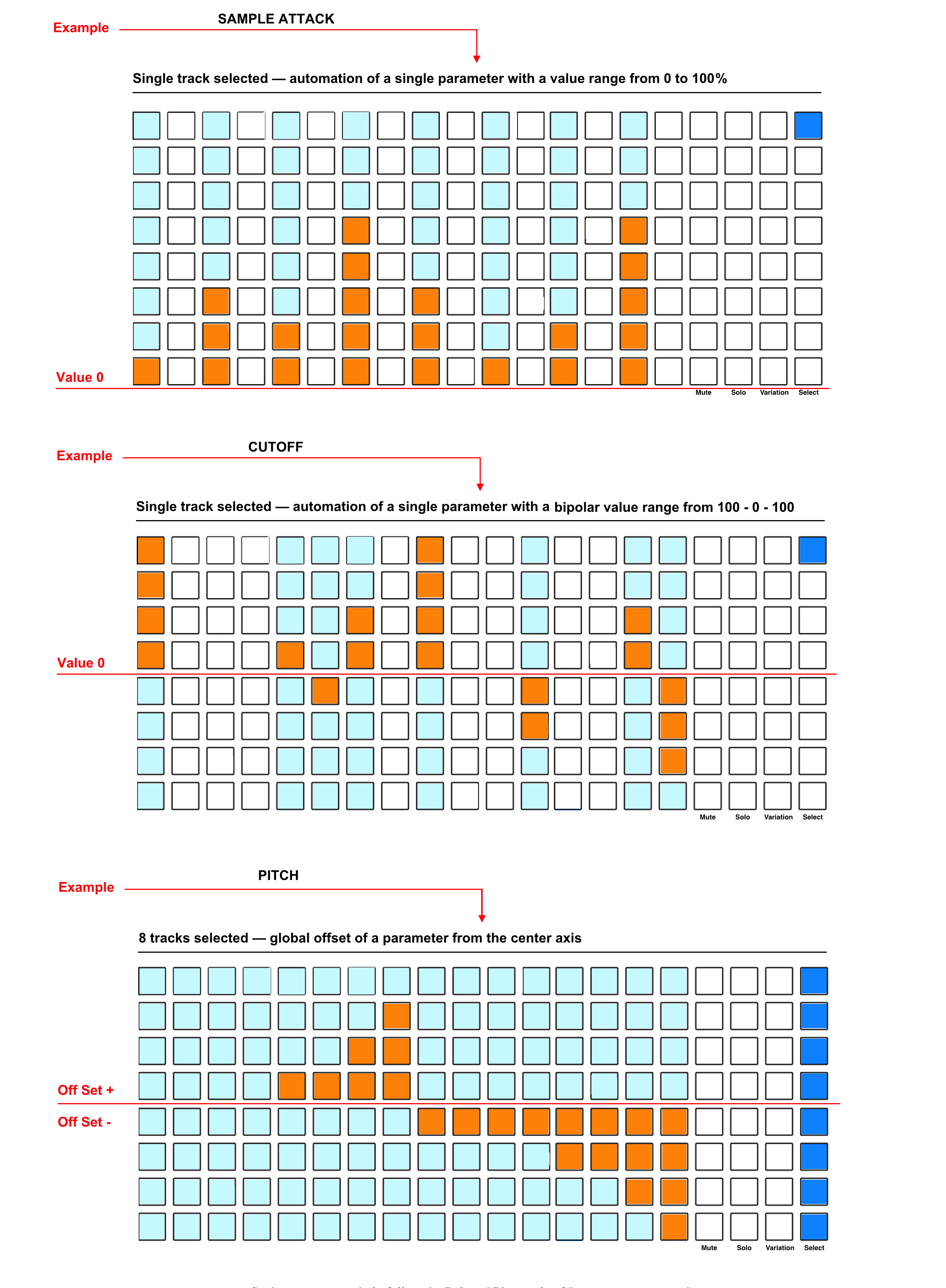
VISUAL AUTOMATION — Step based automation editor on the pad grid
The essence of this cool feature is that it allows us to visually see parameter automation directly on the 8x16 pad grid. As a result, we will get a real-time visual interface that allows you to instantly draw, edit, and align automation values for both a single track and multiple tracks at the same time.
The working principle of visual automation perfectly fits into the Polyend Play+ architecture. Everything for this is already inside the device. We are not asking to write complex code or load the processor, but we are asking to use already existing capabilities and step-lock algorithms. The feature only opens up visual access to this data and outputs the figures already existing in memory onto the RGB pad grid, turning it into a canvas for editing. This gives a huge workflow speed up.
We will be able to enter this visual layer for any knob (Cutoff, Pitch, Roll, etc.) using a simple combination of buttons — for example: Shift + pressing the encoder with the parameter. At this moment, the pad matrix temporarily switches to graphic editor mode.
WORKFLOW
Track selection and entering the mode
• Select one track or multiple tracks using the Select buttons.
• Press the Shift button + physically press the desired knob — for example, Cutoff.
• The pad grid will instantly switch to Automation View mode for this specific parameter.
• Changing a parameter without leaving the mode: we do the exact same thing but with another knob — for example, Repeat.
• Exiting the automation mode can be done, for example, by pressing View or Patterns.
Viewing and editing parameters of a single track
The grid shows us vertical columns of values for each existing step. Depending on the selected parameter, we have two types of display:
• Regular parameters - for example, Sample Attack: Have a value range from 0 to 100%. They are displayed standardly from the bottom up.
• Bipolar parameters - for example, Cutoff: Have a range with a plus/minus sign. They are displayed in bipolar mode — up and down from the central axis.
To prevent drawing blindly, steps with triggers have a dim bluish vertical backlight across 8 pads, so we can immediately see where and what we have placed. Bright orange automation columns are already layered on top of this weak backlight.
Viewing and editing parameters of multiple tracks
• The grid switches to a bipolar display mode of the Offset value — for example, the Pitch parameter from the central axis. The pads do not display the value of the Pitch parameter itself, but the value of the global Offset shift for steps on all selected tracks at the same time.
• By default, nothing lights up on the grid (Offset = 0). When drawing, the pads will be colored from the center up (+ shift) or down (- shift). If before this the parameter automation was recorded live for all 8 tracks, you will see the display of this movement, and it can be edited.
• To see the overall pattern structure of the entire chosen group, steps containing triggers on at least one of the selected tracks activate a dim vertical backlight. Bright orange macro-offset columns are layered on top of it.
Coarse parameter automation
Everything happens exactly the same way as during regular work with the Polyend Play+ sequencer: you simply move your fingers across the grid to set, change, or completely erase automation and Offset values on the pads.
Fine parameter automation
Hold down the step pad with one hand and turn the parameter knob with the other to precisely change the parameter value on the screen. The vertical column of pads on the grid will be colored by ranges, coarsely displaying the changes.
Cool workflow hack
Having the ability to edit and write the Offset value to several tracks at once, we can actually replace a full Performance Mode in step mode.
• Creating fills from scratch: You select all 8 tracks, select and write several parameters separately, creating super fills on the go.
• Editing live recording: You can record a bunch of parameters across all 8 tracks chaotically in real time in record mode, and then enter this mode and edit each parameter individually, bringing order to this chaos.
Backward compatibility
When loading old projects, this innovation has absolutely zero impact. Automation data is already saved inside the standard step-lock containers of your existing projects. This mode simply reads these values upon activation and remains hidden during normal workflow.